Physical Address
North California Coast
United States
Physical Address
North California Coast
United States
Building our Family Tree Together
Building our Family Tree Together
The WIkiTree Browser Extension is an indispensible tool for doing genealogy on WikiTree
In last week’s post, I reviewed some of the additions that I use from WikiTree Browser Extension. If you haven’t read that yet, please take a look at it as well. However, each article stands alone.
Read this article on Substack
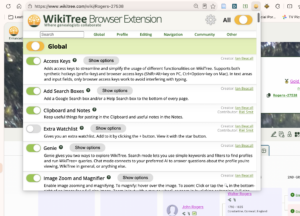
Before I dive into the features, I want to clarify something from my first post. The icons and other changes you see depend on which WikiTree Browser Extension options you’ve enabled. Don’t worry if your display looks different from my screenshots. We may simply have different features enabled.
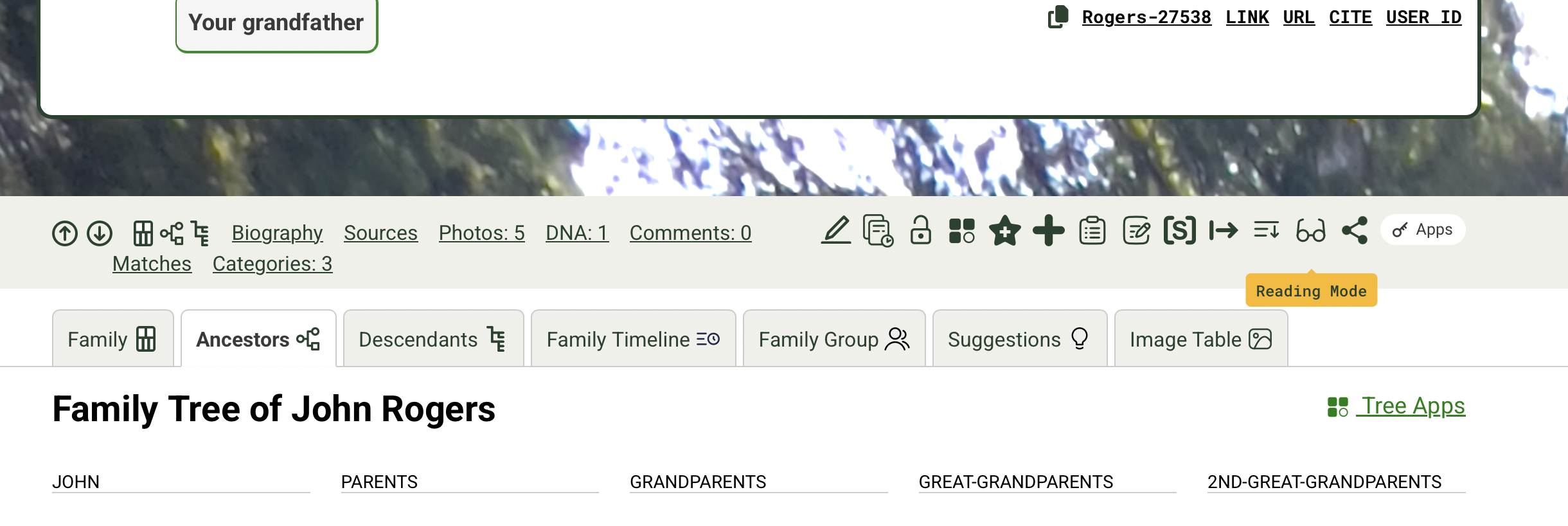
To demonstrate, in the image below, I enabled every feature. Look at all the pretty icons!
One of the things that I treasure most about WikiTree is that documentation is not just something emphasized for profiles. Every page, feature, app or other piece of WikiTree comes with documentation.
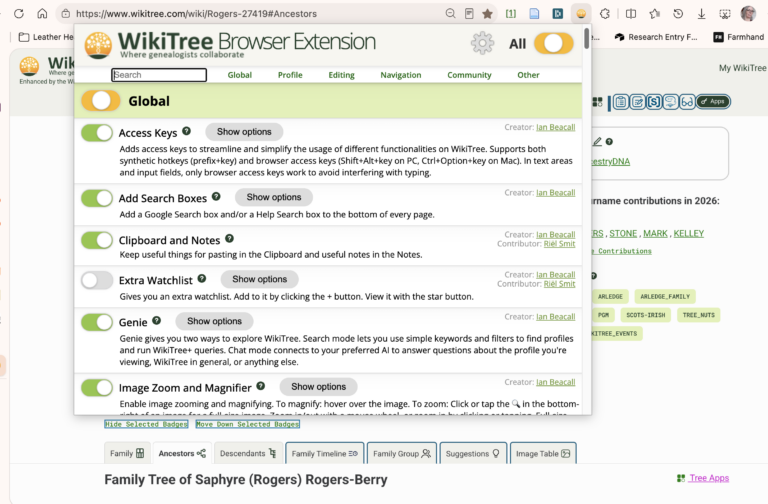
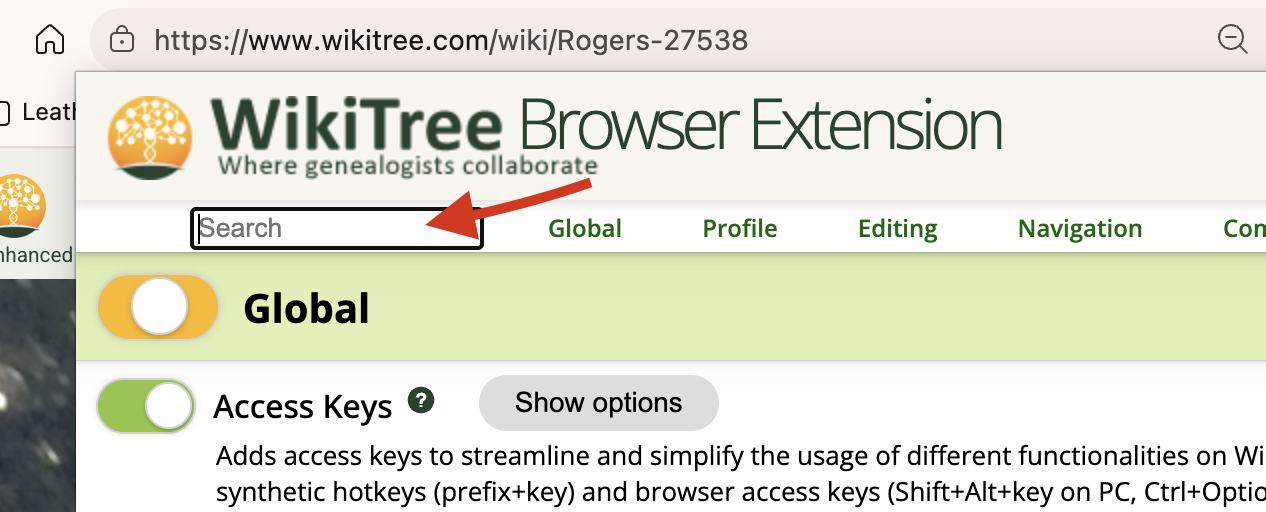
All icons have hover text and will display what tool they are attached to in the WBE. One of the most handy functions is the search box at the top of the configuration settings. Here it is possible to search for the icon text so that it can be configured or disabled if desired. Additionally, next to every option is a black circle with a question mark. This leads to help text for that option.
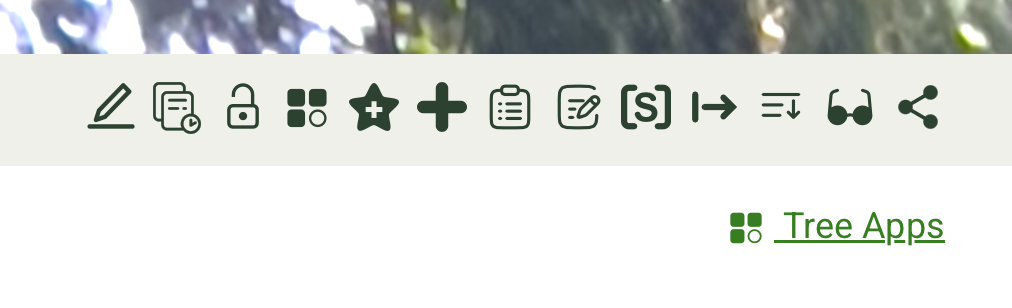
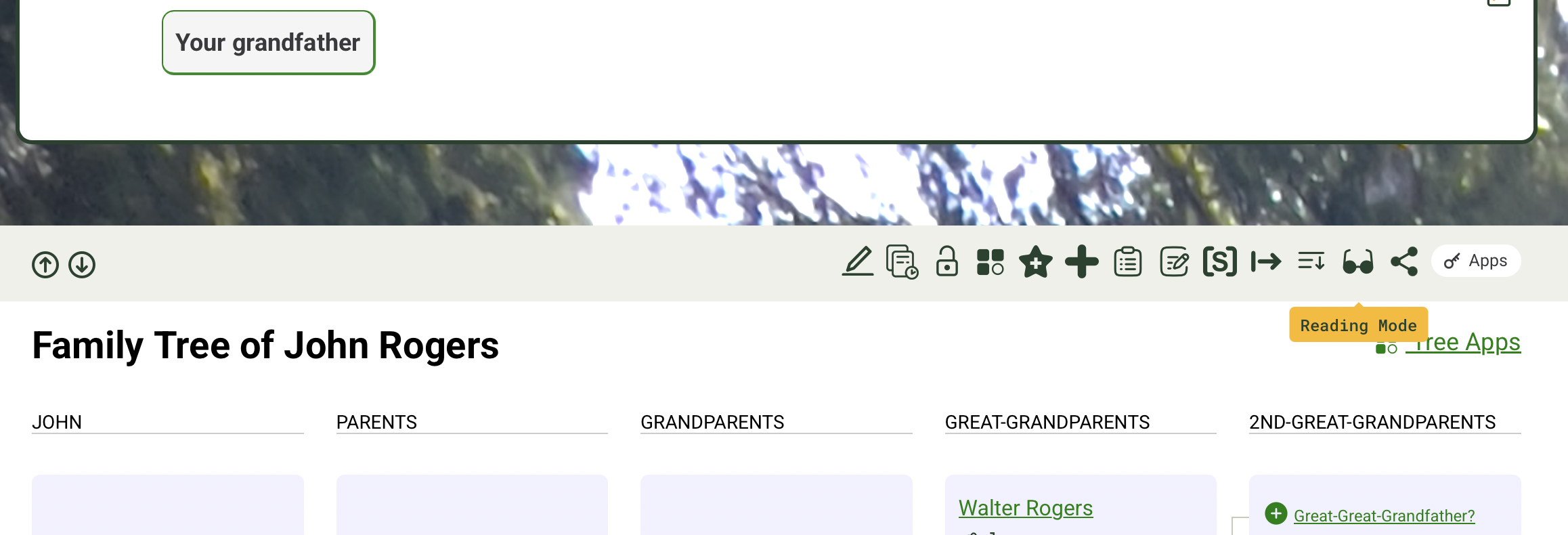
Now, let’s take a closer look at the last two icons on the menu bar I introduced last week: Reading Mode and Share. Both are especially useful in my work as a genealogist.
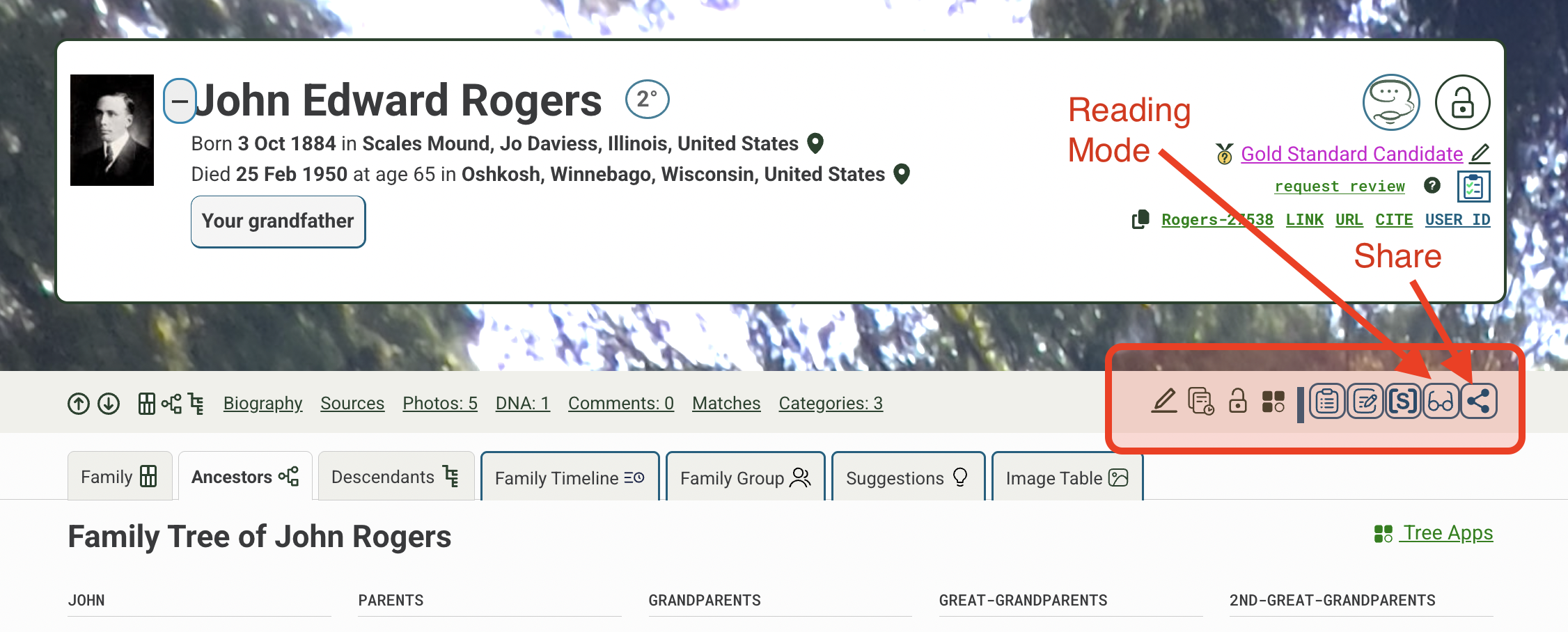
Reading Mode, represented by the glasses icon, allows me to hide things that I don’t need to see, or only need to see when I am editing.
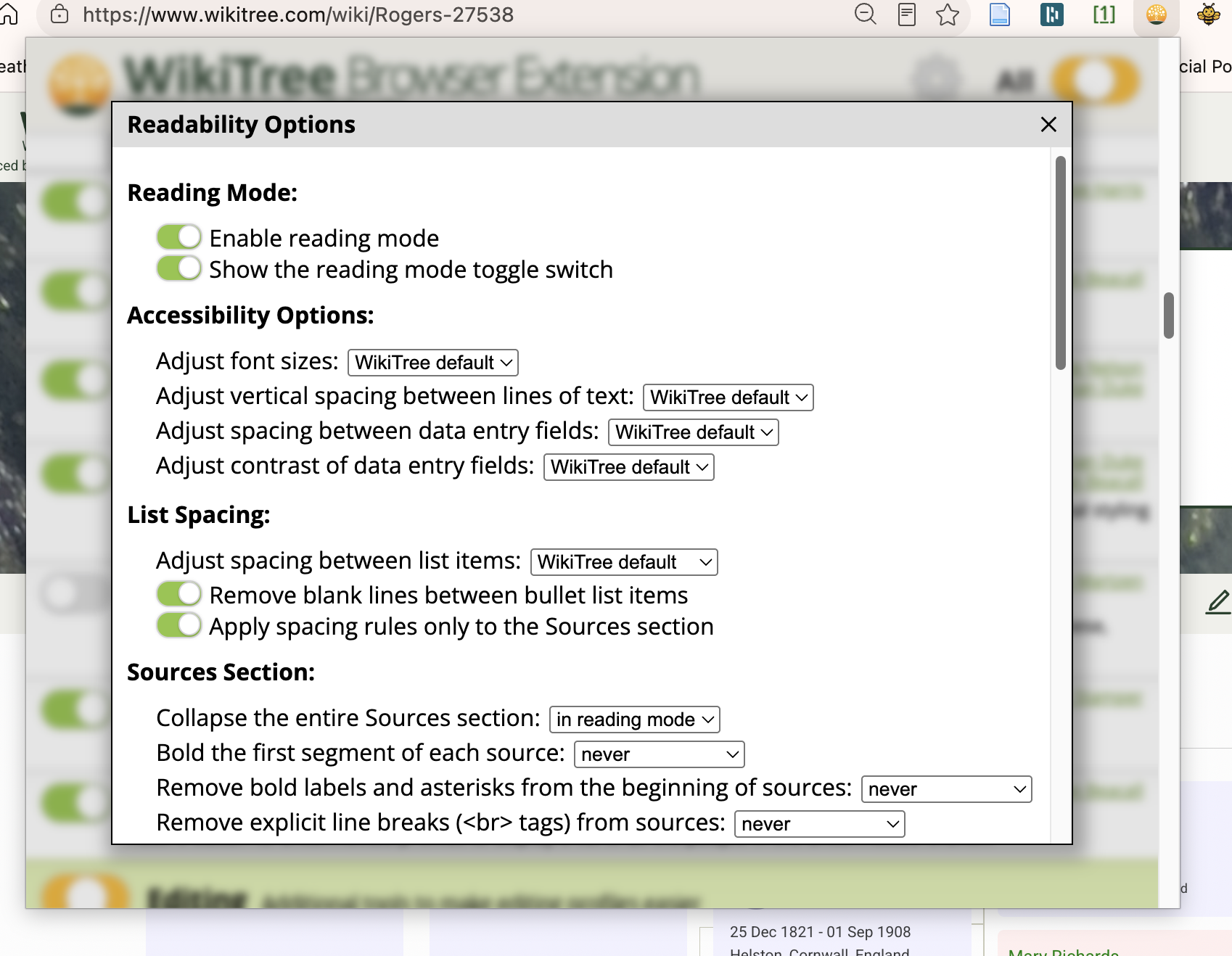
Reading Mode is highly configurable with nine groups of options, all with several suboptions. The first five are general and apply to the entire page. These include enabling the tool, accessibility, list spacing, sources and inline citations. The last 4 all deal with specific sections by type or location.
The first choice enables or disables Reading Mode. When the glasses icon looks shaded, Reading Mode is on. When the glasses are clear, it’s off. The screenshots below show the same profile with Reading Mode off, then on. Notice how enabling it simplifies the view.
The next set are primarily accessibility options for font size, spacing and text box shading. If you find the default text difficult to read, these options can be very helpful even if nothing else is enabled.
Source formatting and visibility are next. The source section can be hidden entirely, or just particular pieces. The following inline citations section changes citation number format and size, and spacing. It also includes one of my favorite options, the ability to reorder citations if they are not in numerical order. As a bit of a perfectionist, it bothers me to see citation numbers out of order. Here I can set the system to display the citations in numerical order.
The final 4 selections deal with showing or hiding many of the extras that are attached to a profile. Formatting of the side panel, the top panel, the biography itself and the bottom section are all included. For example, WikiTree has added DNA genealogy and there is DNA information that automatically shows in the right side panel. I do very little with DNA genealogy and so I have hidden that feature.
The options are incredibly detailed and I invite you to check them out. I use a number of them to declutter the page unless I need them for editing. If so, I simply click the glasses icon to turn Reading Mode off.
It is no surprise that the option to share a page has so many choices. WikiTree is at its heart, a collaborative effort of genealogy and is all about sharing the work.
As a result, the ability to format what is shared and how it looks is very detailed. For those who just want to share a profile they have worked on, every option has defaults already supplied. For a simple post, choose the picture(s), supply post text and then follow the directions listed at the end.
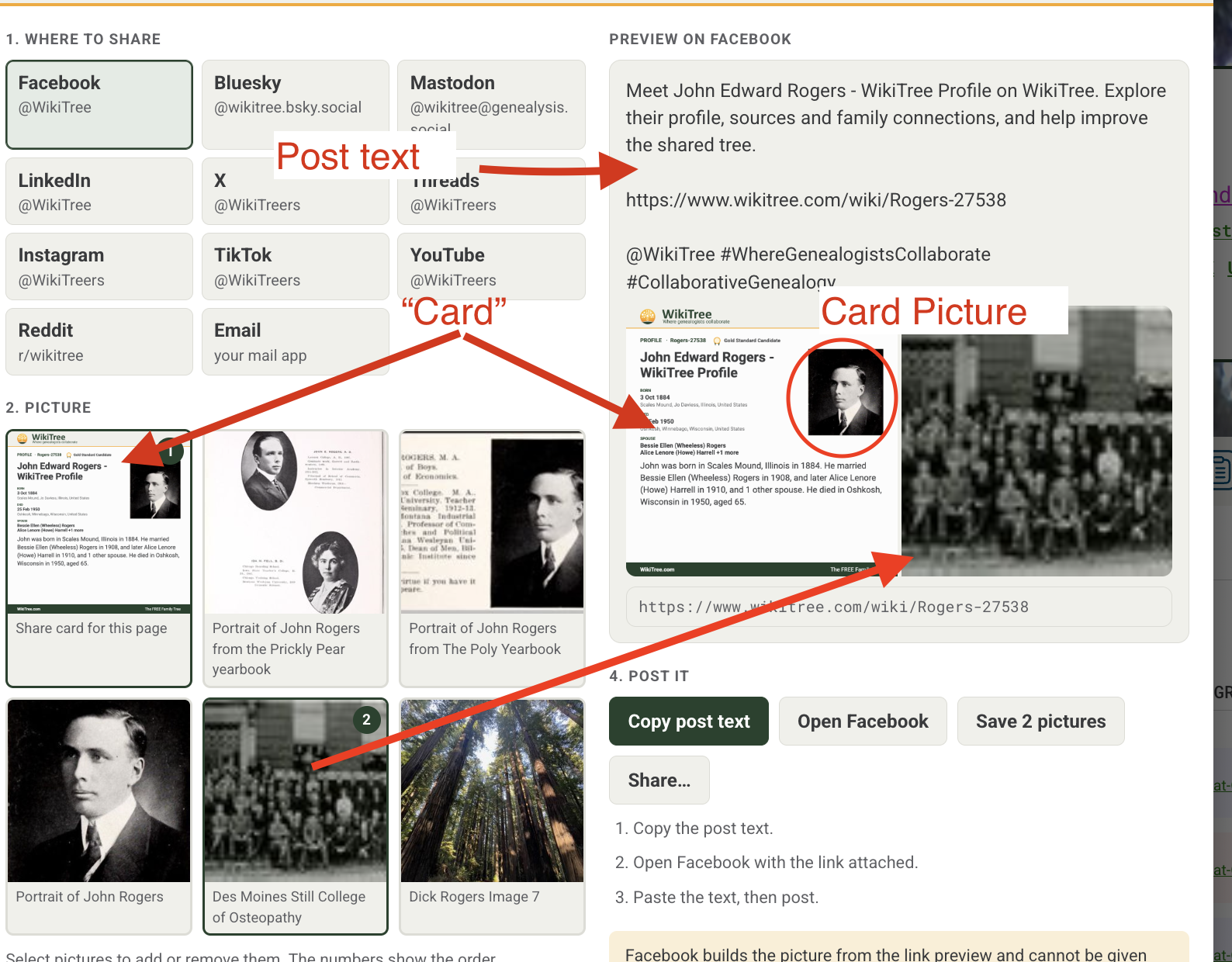
If a more customized post is desired, the choice of images and text can be important.1 Before I go into specifics, there is a key term to understand. In the Share box, WikiTree starts with a selection of images. The first image (selected by default) is an image of the profile/page. This image is considered by the tool to be the card. In the following discussion as well as with the tool, when the word card appears, it is referring to that image.
The first selection is the social media platform. Options include Facebook, TikTok, Blue Sky, Mastadon, as well as several others. Choosing the platform makes small changes to the end post formatting automatically. For example, the Facebook selection formats it to refer to a Facebook group.
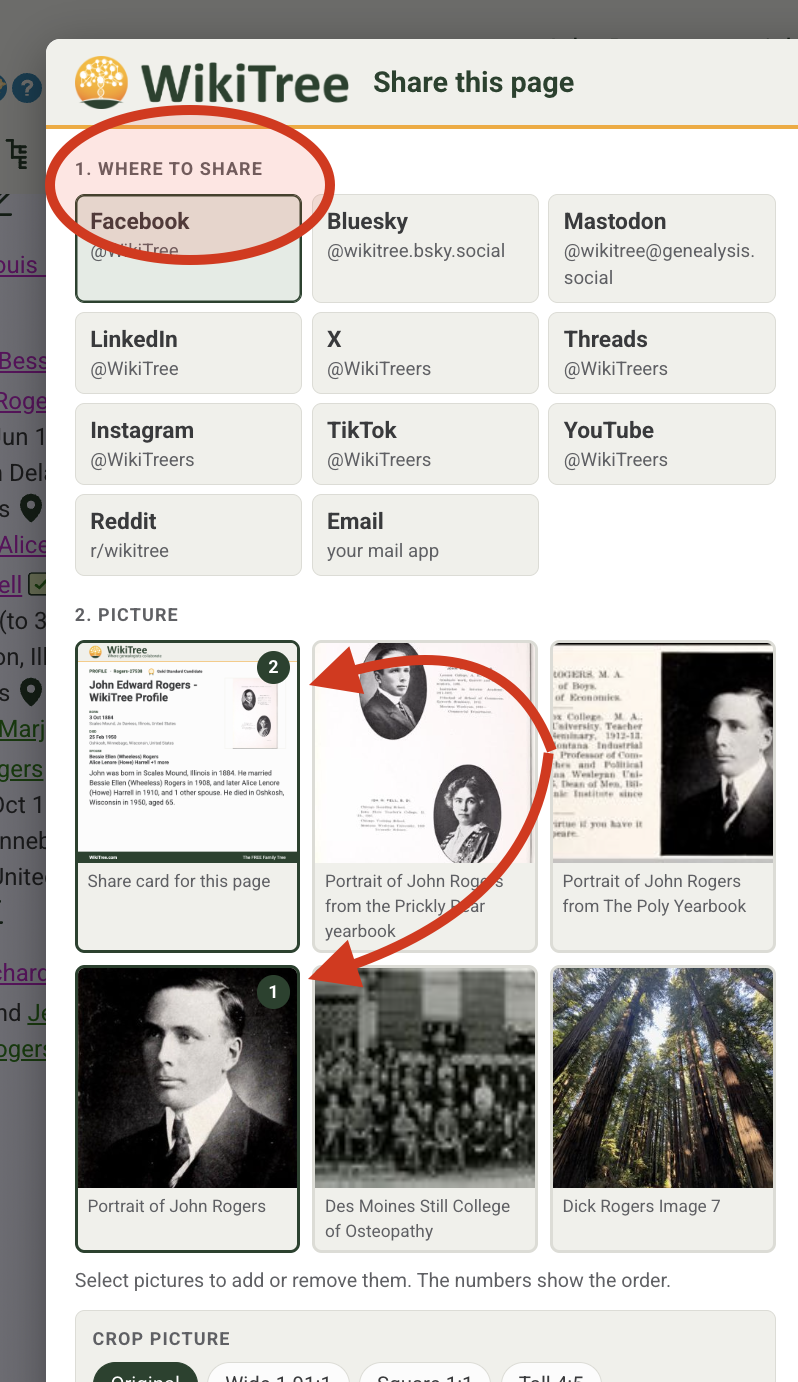
Step two is to choose an image for the post. Shown first is an image of the profile (the “card”) plus the first five images from the profile. The share feature is limited to these images only.2
More than one image can be selected, and each displays a number in the top right corner to show order. To reorder, simply click to unselect and then pick them in the order desired. In the image above two images are selected, with my grandfather’s profile picture first.
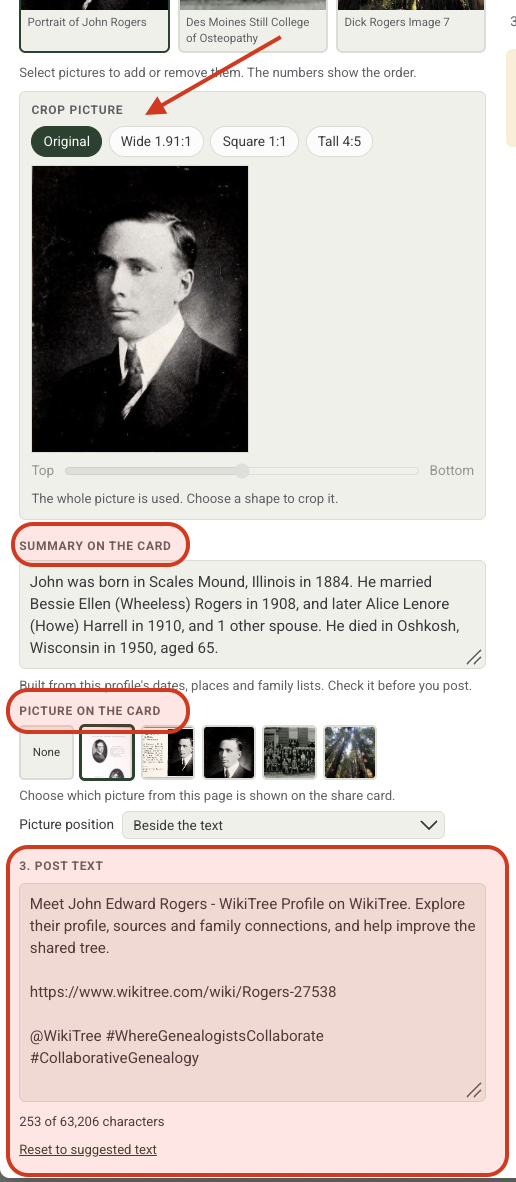
The first text section, “Summary on the card” uses basic facts from the profile and sets them as the default. Accept what it has supplied or replace the text. Particularly for pages that are not personal profiles, the default text here can be a bit rough. If the card is being used, make sure to check that this text makes sense for the post.
The next section, “Picture on the Card” allows choice of the image that will personalize the card. For example, I used the primary profile picture for my grandfather’s share in the above image.
Note: If the card in not included among the selected images, “Summary on the card” and “Picture on the Card” won’t appear in the finished post.
The next text box, “Post Text” is the text that will go into the post. The wording here will always appear and should reflect what the post is about/for.
I recommend playing with these options until familiar with them if sharing is an important goal. The preview on the upper right of the share box will show the end result before posting. It is a great way to test whether to include that “card” image and information, or not.
Once images are selected and text has been added, if the preview looks good, the next step is to publish. The tool doesn’t publish automatically. Instead, it provides buttons to save the text and download the images for your post. I find this process easier than many other sites’ sharing tools.
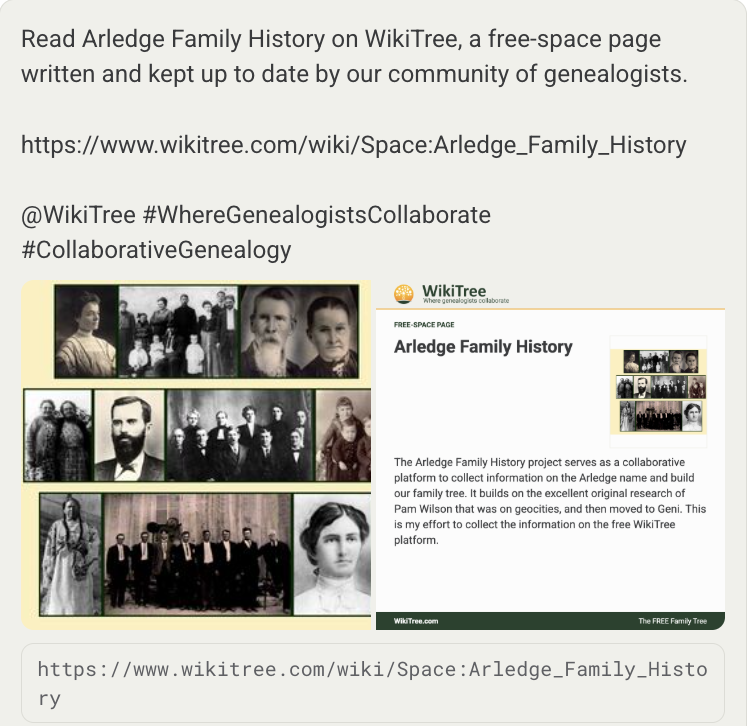
Finally, sharing is not just for people profiles. Any page can be posted to social media. I used this feature to share work I was doing on the Arledge Family History Project on Facebook:
Reading Mode helps me focus on the information I need, while Share helps me present my work to others. These are just two of the WBE tools I use regularly. There are plenty more I haven’t tried or don’t use yet.
The best way to experience this is to dive in on your own and play. See what enabling or disabling a particular feature does and use what works for you.
After reading my posts, if something is confusing, leave a comment here or post in my WikiChat. As a community, we can help one another find answers. Don’t forget the WikiTree community, either. Questions on G2G usually get answered quickly.
Next week I will finish this set of posts on WikiTree by talking about a few more of the tools that are helpful for me. See you next week.