Physical Address
North California Coast
United States
Physical Address
North California Coast
United States

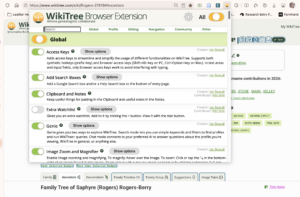
Make WikiTree your own with the WikiTree Browser Extension
One of the tool that I use every time I work in WikiTree is the WikiTree Browser Extension (WBE). As its name indicates, this is an extension that is installed into your browser. This is the first of a series of posts about this tool. It does so much I have to break it into separate posts.
The WikiTree Browser Extension currently offers 111 distinct and highly configurable features, making your viewing and editing experience on WikiTree completely customizable. It is regularly maintained and updated, can be backed up and restored (so that you don’t loose your settings) and frequently has new additions. It is available where you get browser extensions.
In order to use its functionality, you will also need to login to the “WikiTree Apps” part of WikiTree. If you are not logged in, you will see an “Apps” icon (at the end of these icons) which will take you to the login. Once logged in, that icon disappears.
There are slight differences in behavior and how the tool looks depending on your browser choice. I am using MS Edge for reference. Full differences are documented on the WBE wiki page.
Before getting into the details, like WikiTree itself, it can be overwhelming to first look at this tool. It certainly was for me. I spent much of my first few years on WikiTree with it set to the defaults and still took full advantage of its great features. It is only in the last couple years that I have started to really fiddle with it so don’t feel like you can’t use it if you don’t understand everything it does.
As your confidence on Wikitree grows, you can start to explore how turning options on or off affects what you see and adjust it as you like. I review my WBE selections regularly and update it to fit with my work. It is recommended that you backup once a month. There are frequently updates, and the behavior of my browser makes me enable it each time due to permissions. YMMV.
| Aspect | WikiTree Browser Extension (WBE) |
|---|---|
| Main emphasis | Customizing WikiTree’s interface and improving browsing, reading, profile creation, and editing. |
| Development | A collaborative WikiTree Apps Project effort, incorporating tools from multiple developers. |
| Profile presentation | Reading Mode, Dark Mode, rearranged family lists, category placement, image magnification, and printer-friendly biographies. |
| Editing assistance | Auto Bio, Bio Check, Auto GEDCOM Cleanup, date and location helpers, keyboard shortcuts, and a sticky editor toolbar. |
| Research organization | Clipboard and Notes, an Extra Watchlist, and tools for organizing watched free-space pages. |
| Family analysis | Family Group, Family Timeline, relationship and connection-distance displays, and unconnected-branch tables. |
| Categories | Controls category display and provides category-selection assistance during profile creation. |
As you can see above, WBE adds a number of customizations that organize research, streamline and standardize profile creation, keep notes that can be copied and pasted between profiles, and of course, customize how you see the information.
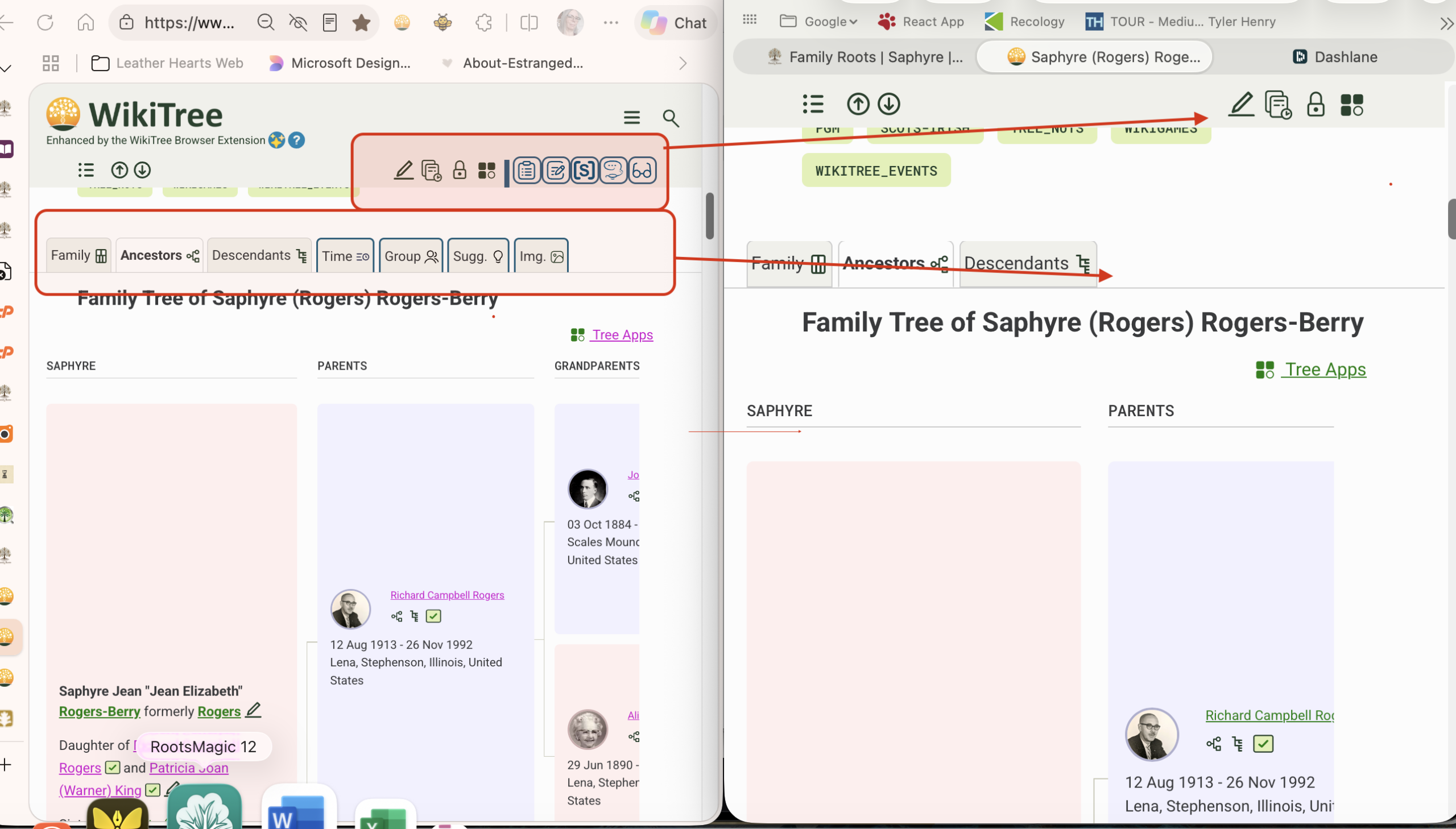
The above image shows WBE active in MS Edge on the left, and without it active on the right. In red I have highlighted areas where WBE has added menus and options. In the top box, you see that WBE has added icons for clipboard, notes, space watchlist and reading mode.

Clipboard gives you a way to keep information that you need at your finger tips to copy/paste into your profiles or pages. Think of it as a little tiny file system for information that pertains to a whole family (for example).
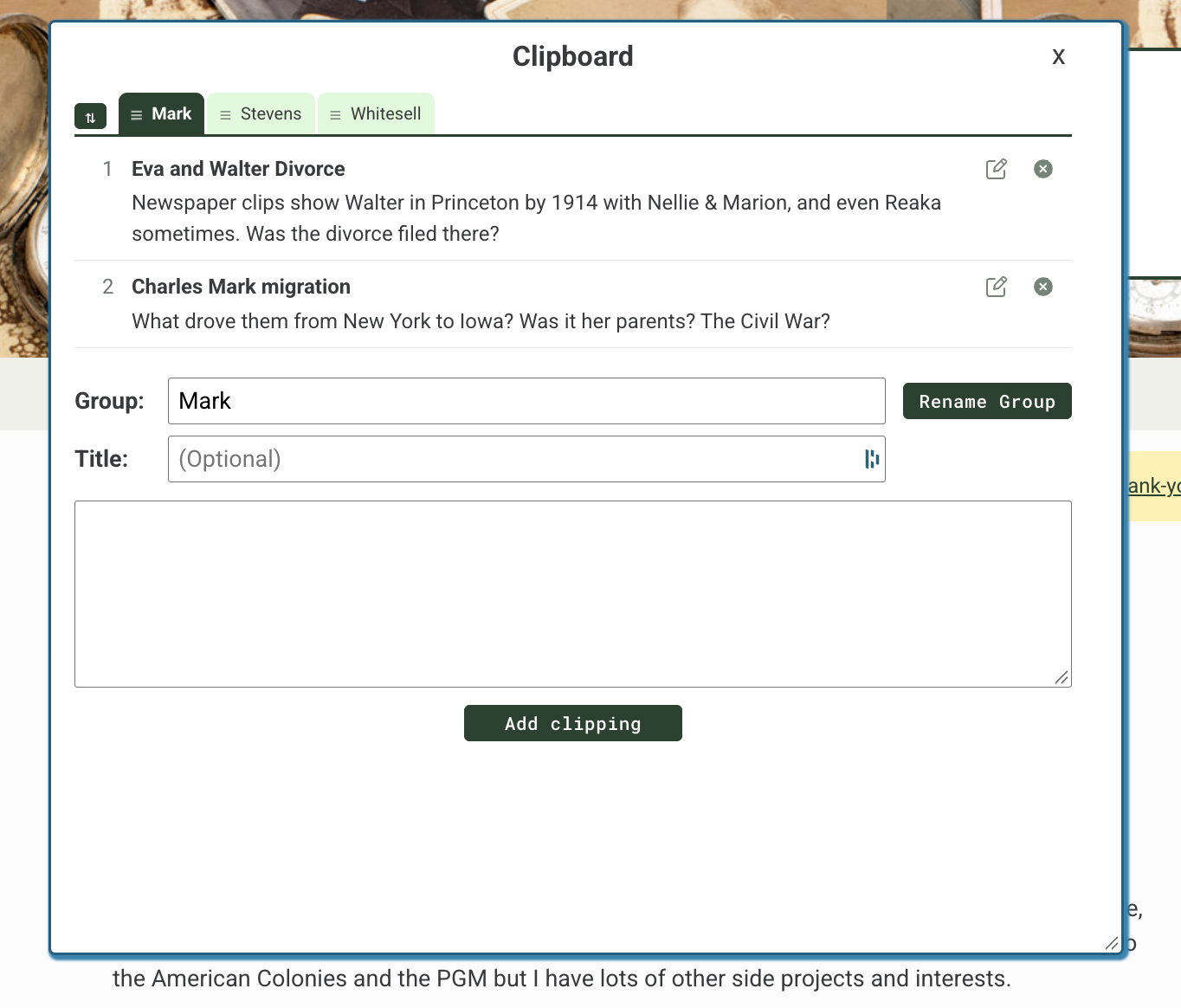
In the image above, I have opened my current clipboard. Notice that the “Groups” are across the top as tabs. Individual notes show above the entry boxes (you can see two in my screen capture).
In order to create a new clip, type in the Group name. Once you have created your first one, the box will show the last group you have added/used by default. If that is not the group you want, select the one you do in the tabs at the top, or erase the text and create a new one. Type a title for this clipping, and type whatever you want into the box below. This could hole anything; a formatted source, a free space page link, or just text that you want on every profile. When you have finished adding the text, click on “Add Clipping” to add it to your filesystem.
In order to edit your clipping, go to the appropriate group and in the listing of clips, click on the right side “edit” icon. This will populate the text box below with the original. Edit as you need and click the button to add it again.
Copying your clipping is easy. Open the clipboard, select the group and then click on the clipping you want to paste. It will copy the text and close the clipboard so that you can paste it into your page.
A final note on clipboard: It is a separate window and will remain open until you close it using the “X” in the top right corner, unless you select a clip (which is the copy action). I generally clear my clipboard once I have finished a project, but you don’t have to.

The next icon is for the “Notes” app. It is identical in every way to clipboard, except it is not used for copy/paste. Instead, this tiny file system is a way to keep notes up front when working in WikiTree. It is organized in the same way as the clipboard with groups and titles. Here is where I may note questions that come up as I’m writing a profile (for research later), or refer to a particular set of facts that I may want to add.
As an example, when documenting the profile of my grandfather, I found that he had two additional children with his second wife that I didn’t know about. I realized this when I looked again at a photograph of an old family document. In my Notes, I added a note to remember to research who they are.
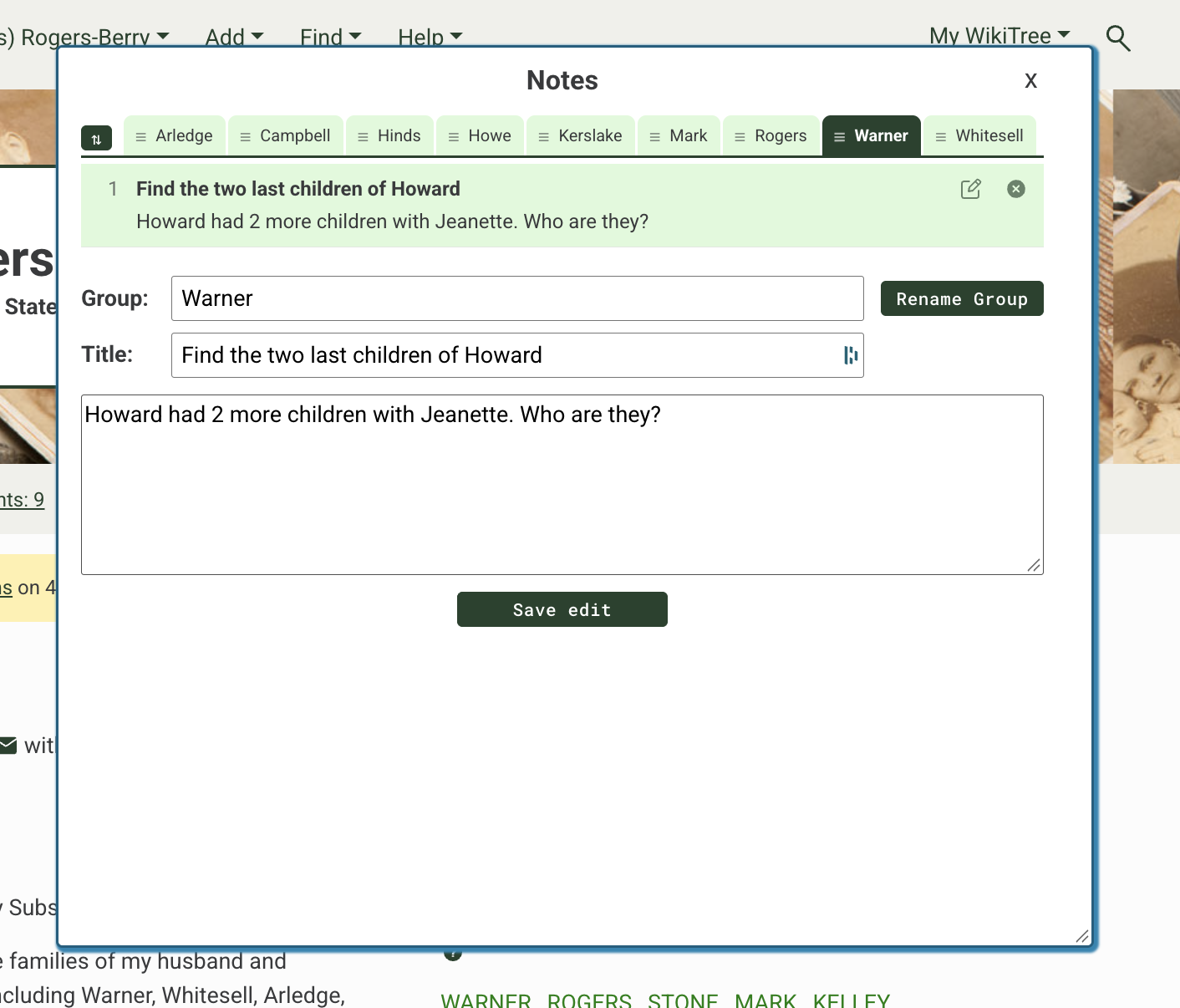
In order to see your note, you must click on the “edit” icon to the right side of the title. You cannot simply click on the note, you must use the edit button. Also, without a copy action to trigger it to close, the window will remain open until closed by clicking the “X” in the top right corner.
This is a powerful tool and as long as back ups are maintained, information stored here could go very deep if needed. Checking notes before creating or editing a profile keeps a genealogist on track with information right where it is needed.

The next icon in the capture may or may not be important for your work. I use it because I’ve created several spaces for different aspects of my family. What is a space? A free space page is a page in WikiTree for anything that is not a person. As you will see in the capture below I have a number of different ones:
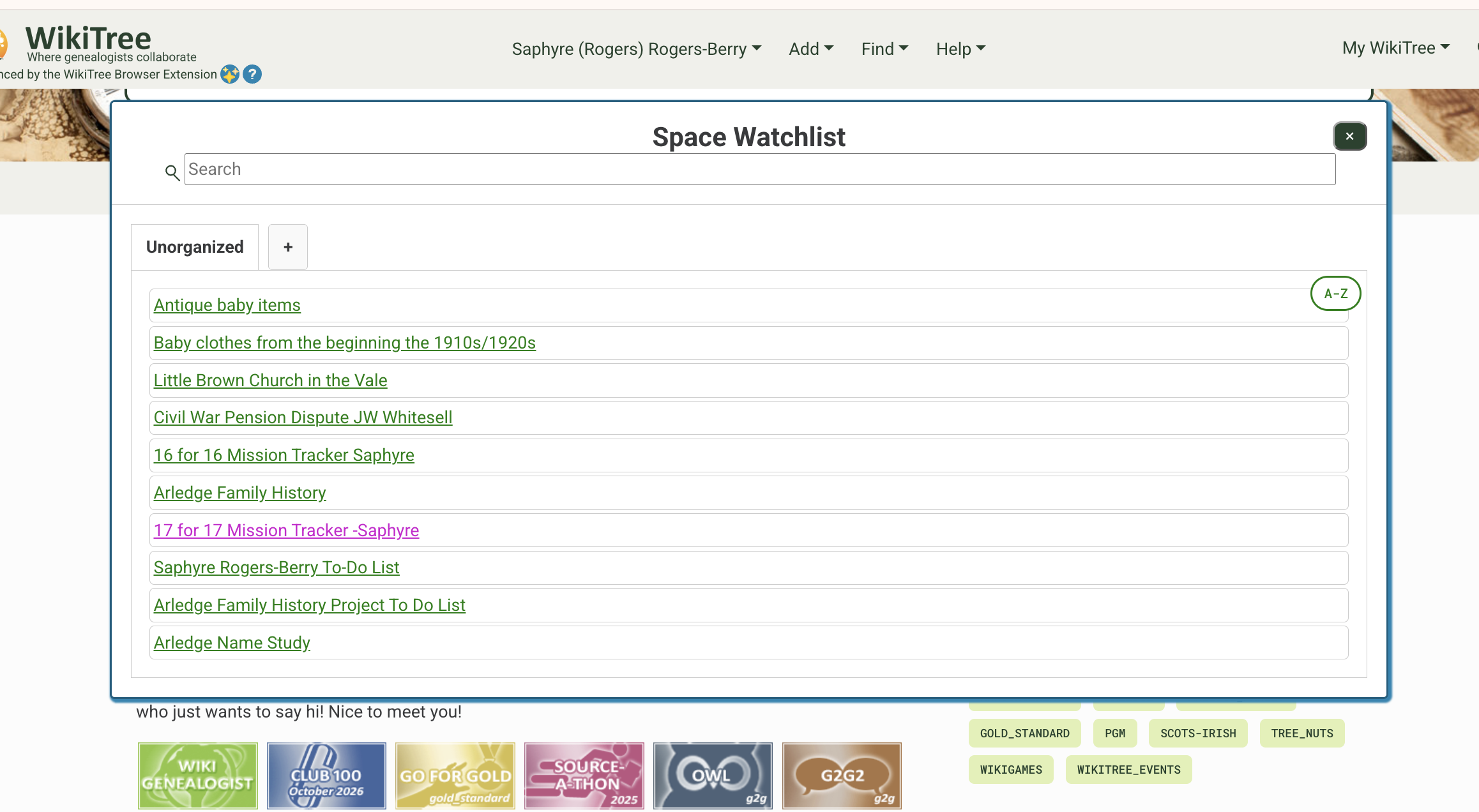
This was useful for me because it keeps one list of all pages I am responsible for. Before I started to use this I had a list of links in an outside note program that I would refer to if I needed to get to one of the pages. Now that I have utilized this tool, I no longer need to maintain a list. Every page I am responsible for and have created (except for person profiles) is automatically listed.
Like the previous tools, this can be customized further by grouping pages that would result in tabs across the top. In order to close, you must click the “X” in the top right.

I use this tool quite a bit as well. It simplifies the profile for reading. It hides things that distract from being able to read through a well written profile. I could show several screen captures but honestly this is a tool that is straight forward and once turned on will stay turned on until turned off again. The glasses icon shows slightly different for “on” and “off”. Like most WikiTree tools, it is customizable as well.
WikiTree Browser Extension (WBE) is an amazing and detailed tool to help you set up WikiTree the way you want to see it and put the tools at your fingertips for easy editing. I encourage you to try it out. If you have questions – as always join our chat.